Upload from SI-Droid Event
Tutorial how to upload results to OResults service using only mobile device connected to the internet (via Wifi/hotspot or mobile data). Make the event even more attractive to participants by sharing the results online.
It works only on mobile devices with Android operating system.
SI-Droid Event app
- OS: Android (the only supported)
- Download link: here
Favorite and very popular mobile app that is used to arrange orienteering events with SPORTident units. The app is paid, but the investment is definitely worth it and it's lifetime. Just buy it if you don't already have it, you won't regret.
SI-Droid Connector
- OS: Android (the only supported)
- Download link: here
Connect between OResults.eu and SI-Droid Event easily.
Just fill the SI-Droid result service port and OResults.eu event Api Key and start uploading!
Step-by-step setup
1. Create a new event
-
Sign up for free on OResults.eu
-
Click on
Create +inMy eventssection and fill in the details -
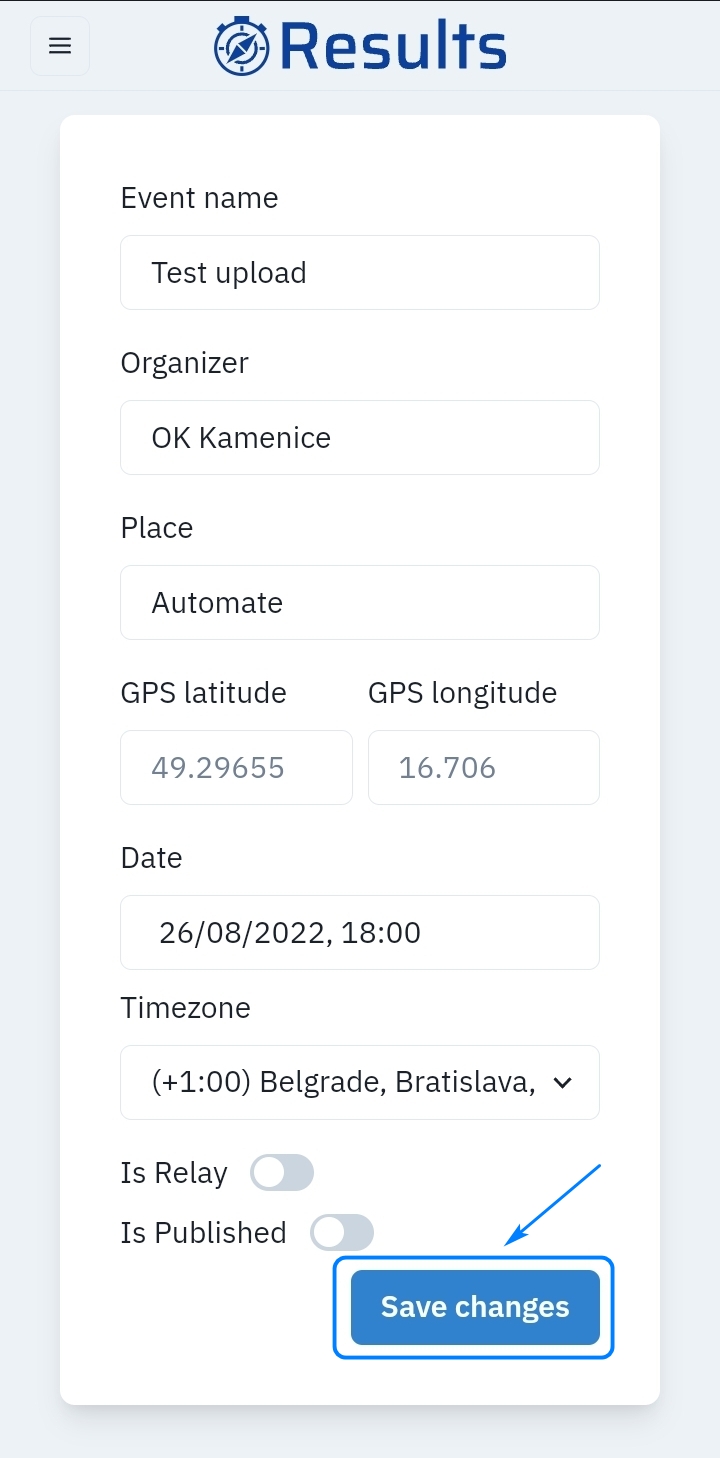
Leave
Is Publishedoff for testing purposes and confirmSave changes -
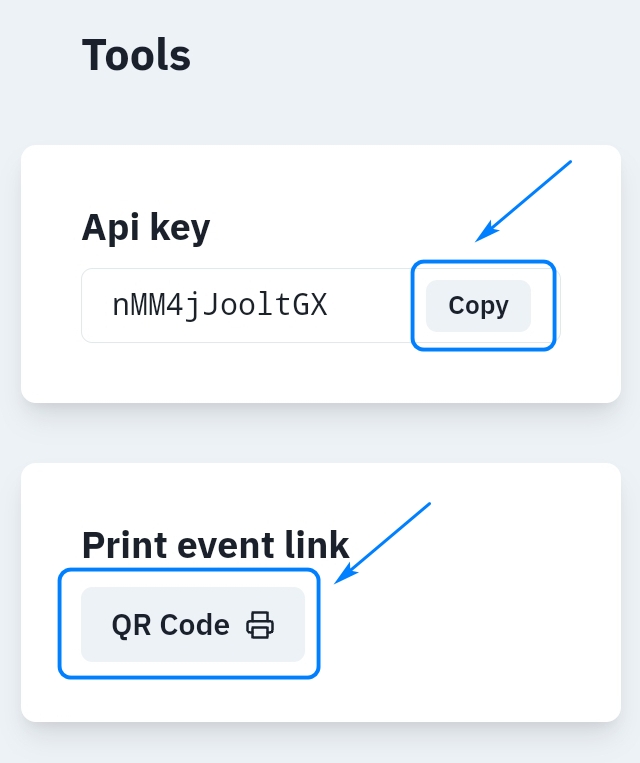
Copy the
Api keyin theToolssection in the panel on the right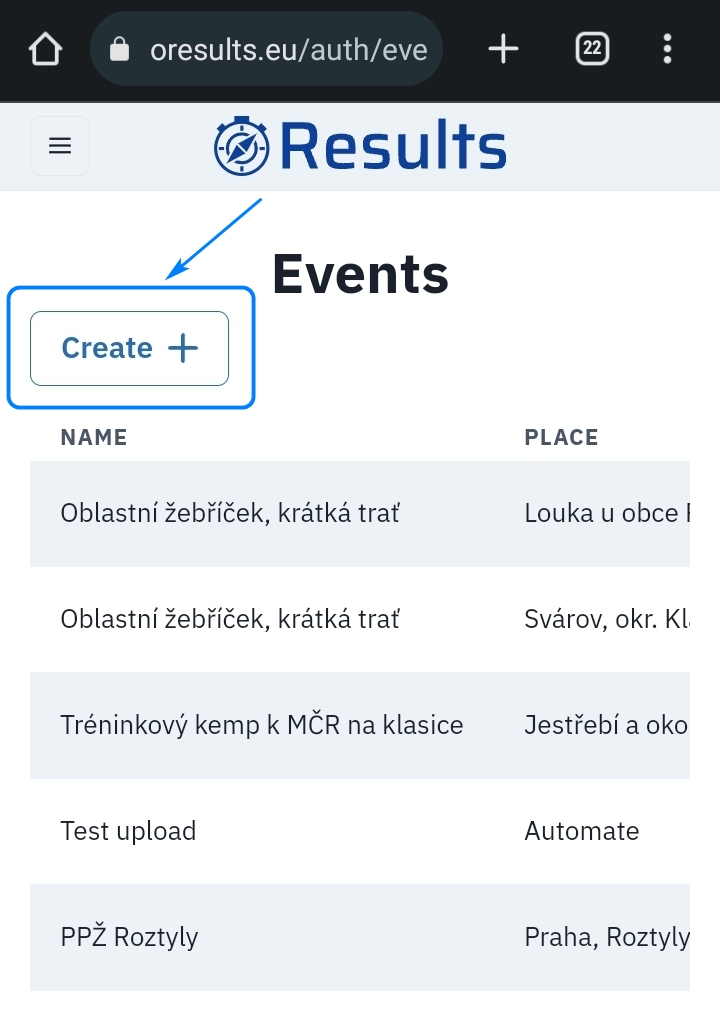
2. Set up SI-Droid result service
-
In any tab in
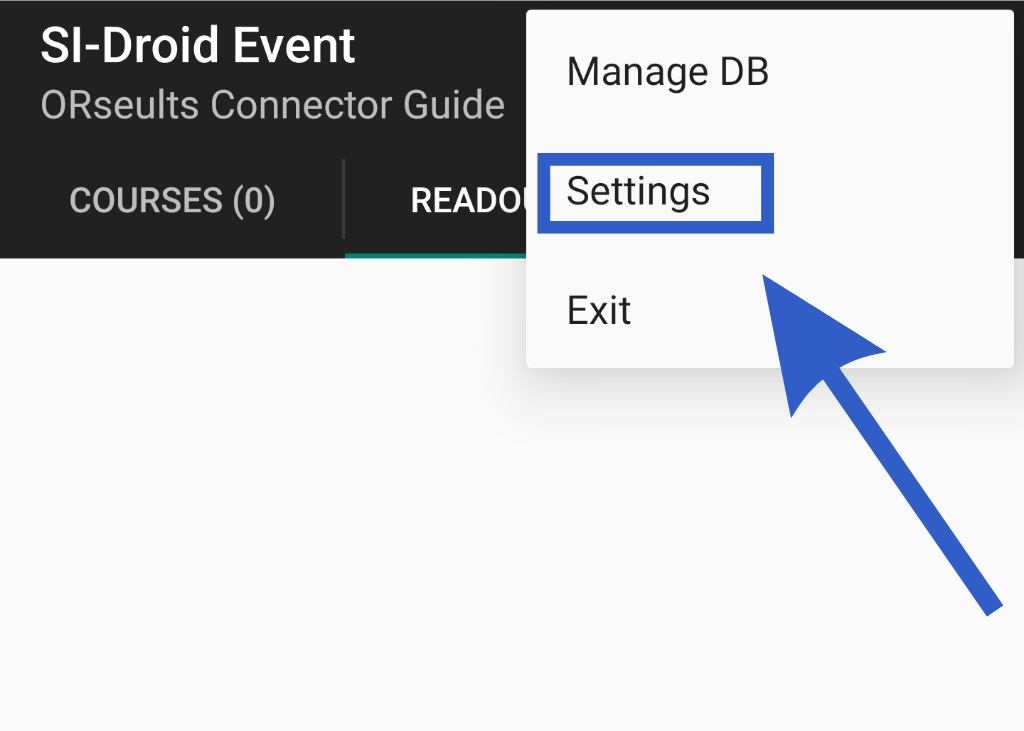
SI-Droid Eventclick on the three dots in the upper right corner and tapSettings -
In the
Settings menuscroll down and click onResult service -
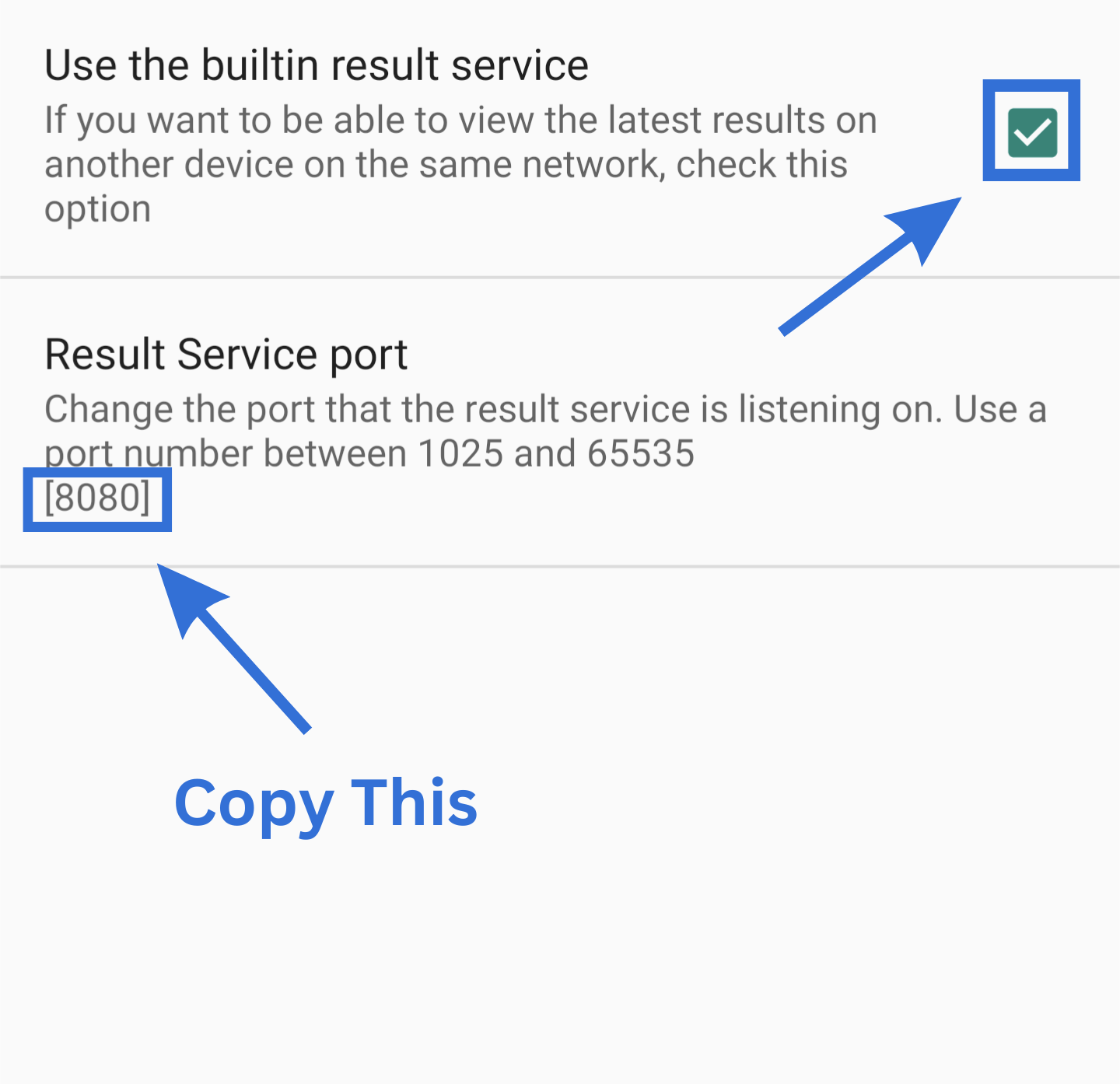
Tick the
Use the builtin result serviceoption -
Copy the
Portin theResult Service portsection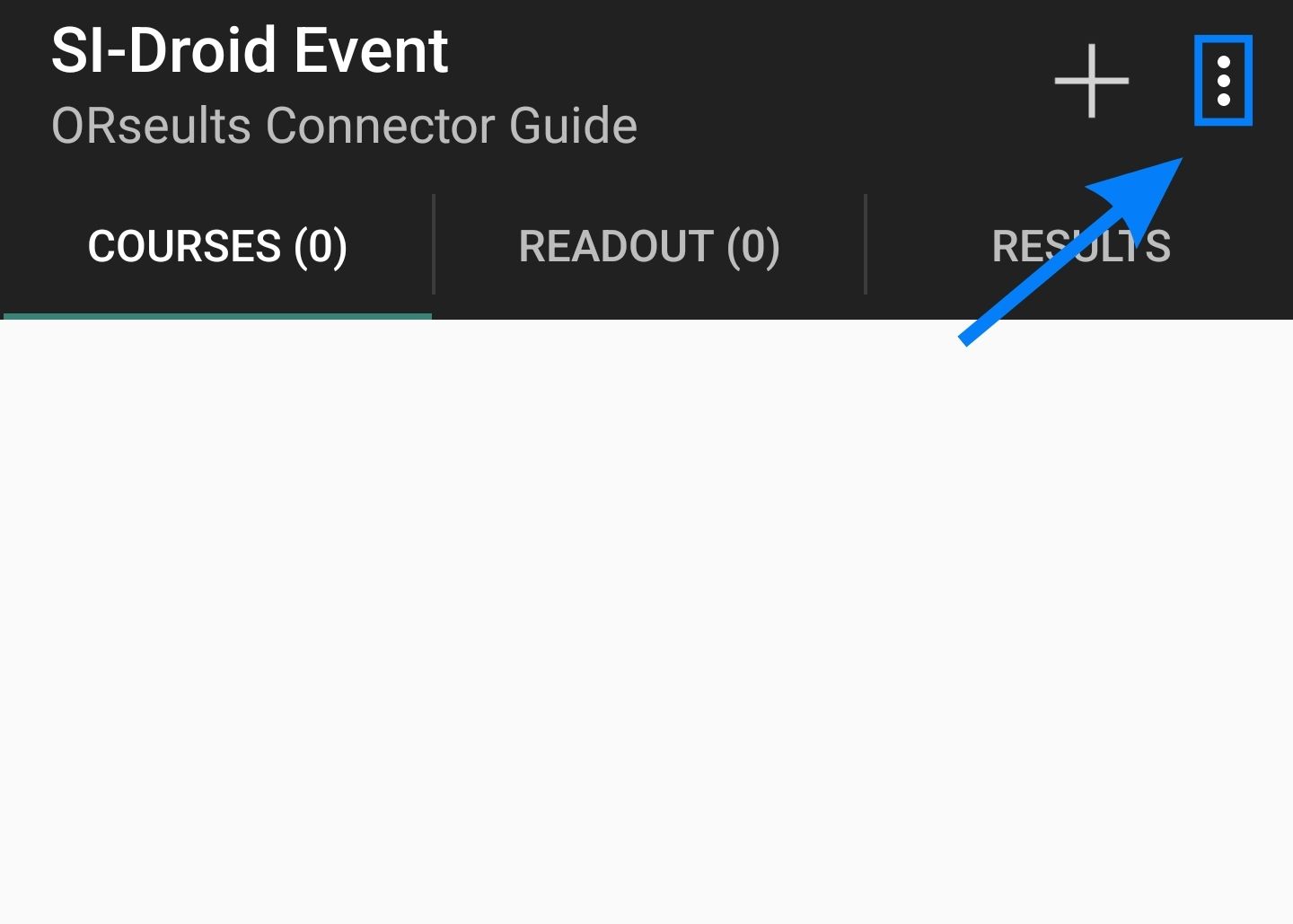

3. Connect result service to OResults and start uploading
-
Open the
SI-Droid Connectorapp and confirm Android permission -
Open
Settingsin the upper right corner -
Switch to
OResultstab -
Choose the
Upload interval, default is 30s -
Paste both the
Api keyand thePortinto their respective input fields, the event name will appear immidiately after entering the key. Or useCopy URLthat automatically updates the api key when opening the app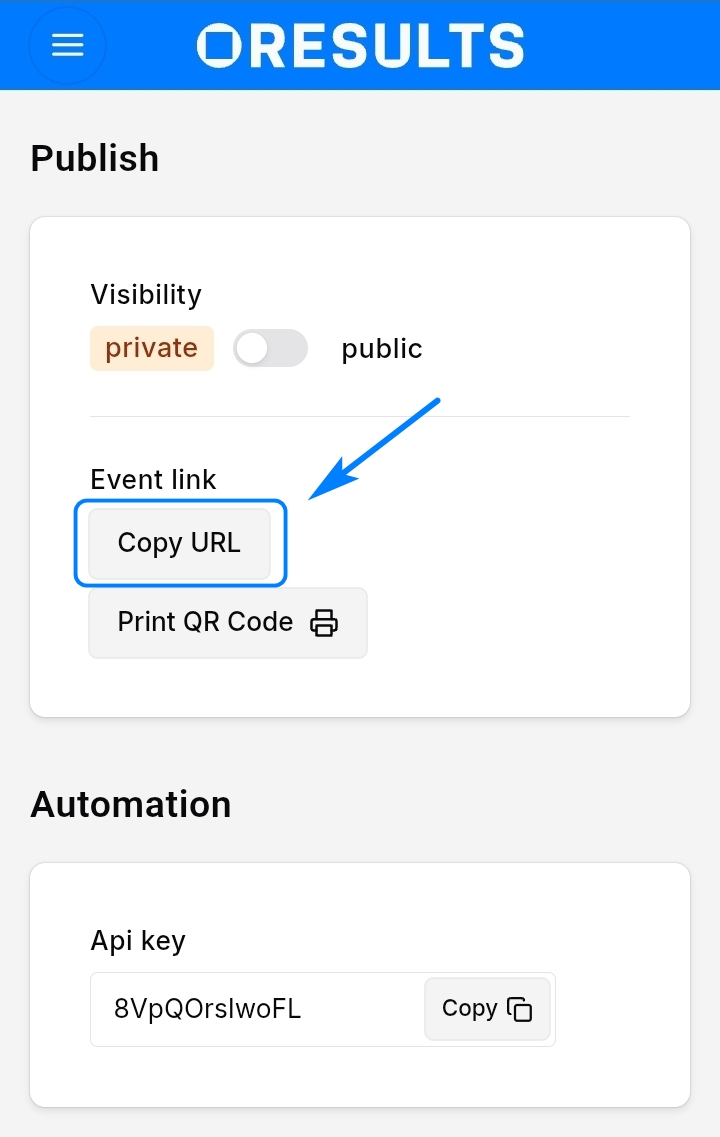
-
Click the
Start uploadingbutton and the uploading will start!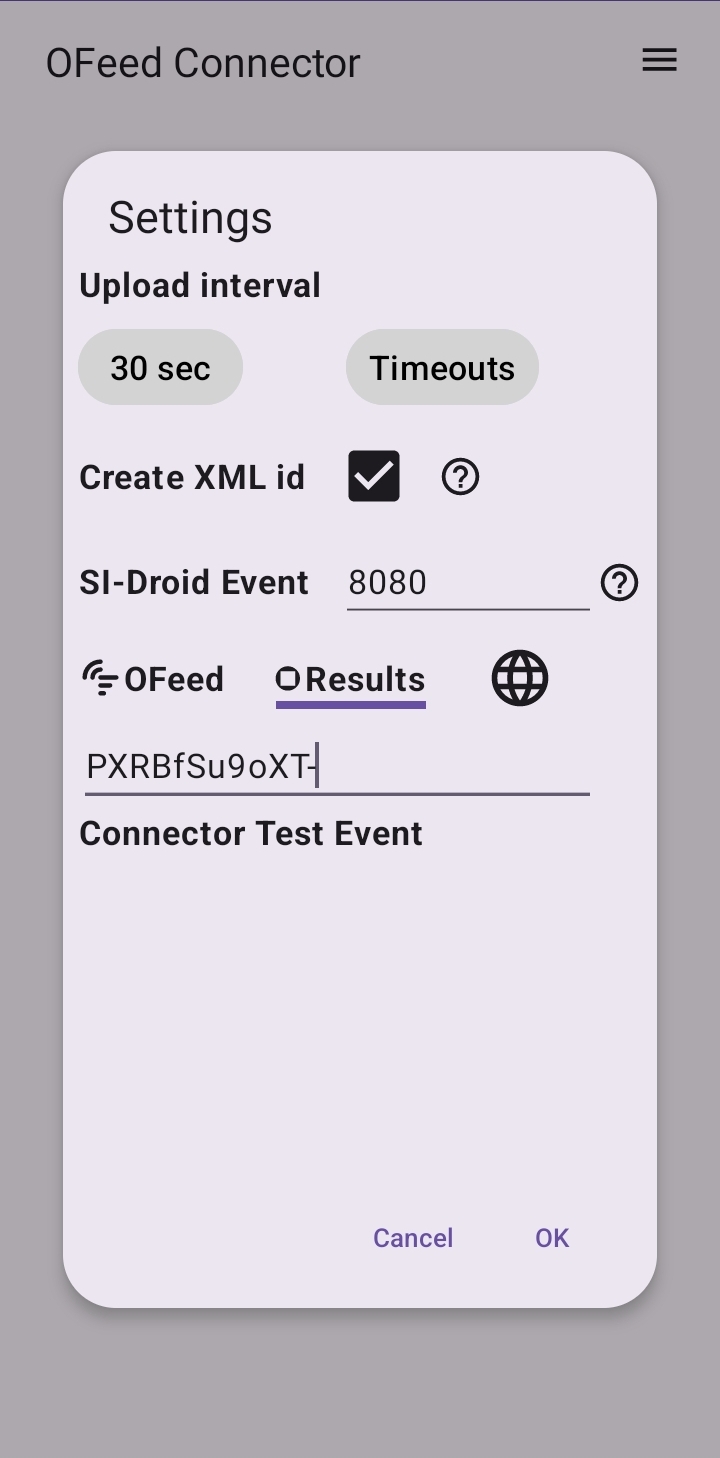
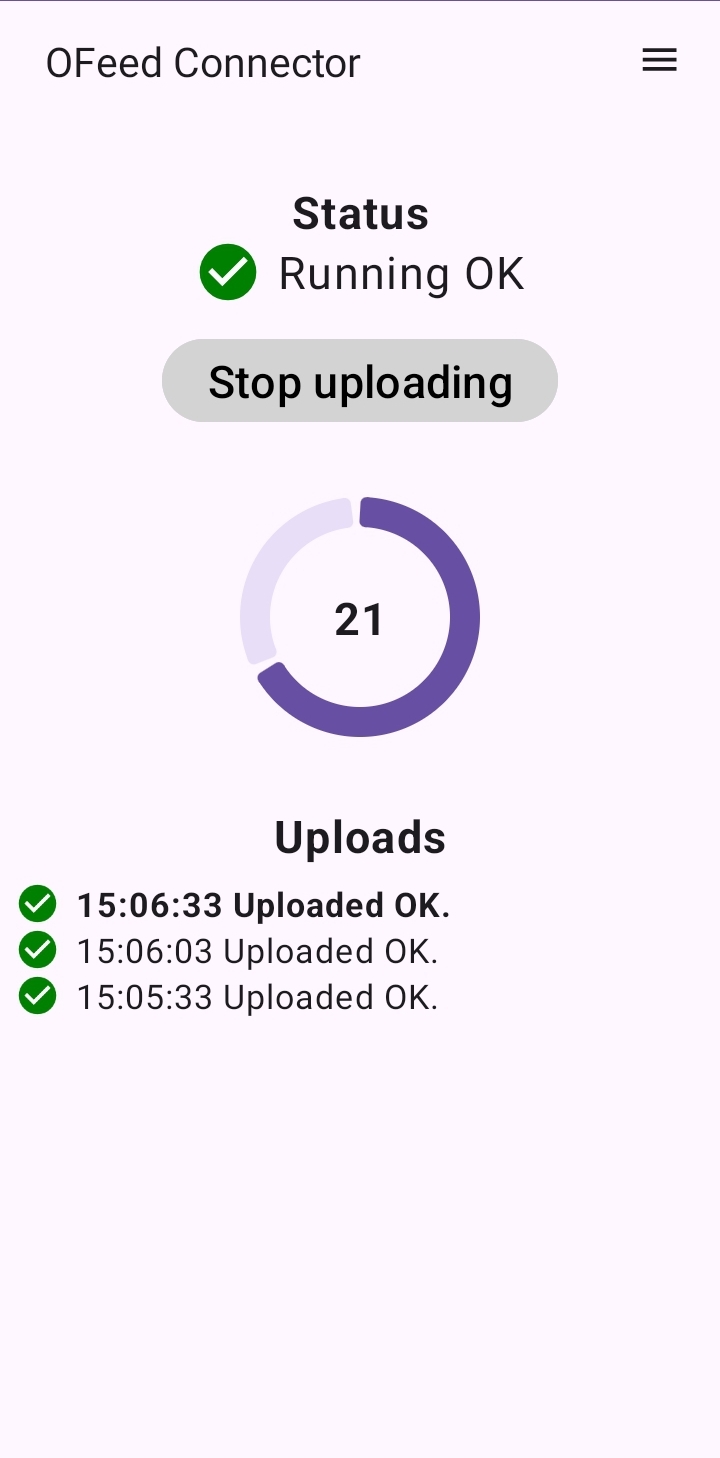
You can view the upload's log in the bottom of the app.
Detailed log is available in the menu under Show log or HTTP log options.
SI-Droid Connector app automatically generates an External id to each competitor, so there is not need to manually enter external id's to participants without a card. You just have to check the checkbox is the settings.
4. Share event
- use built-in QR Code generator and print the code or share in on event webpage
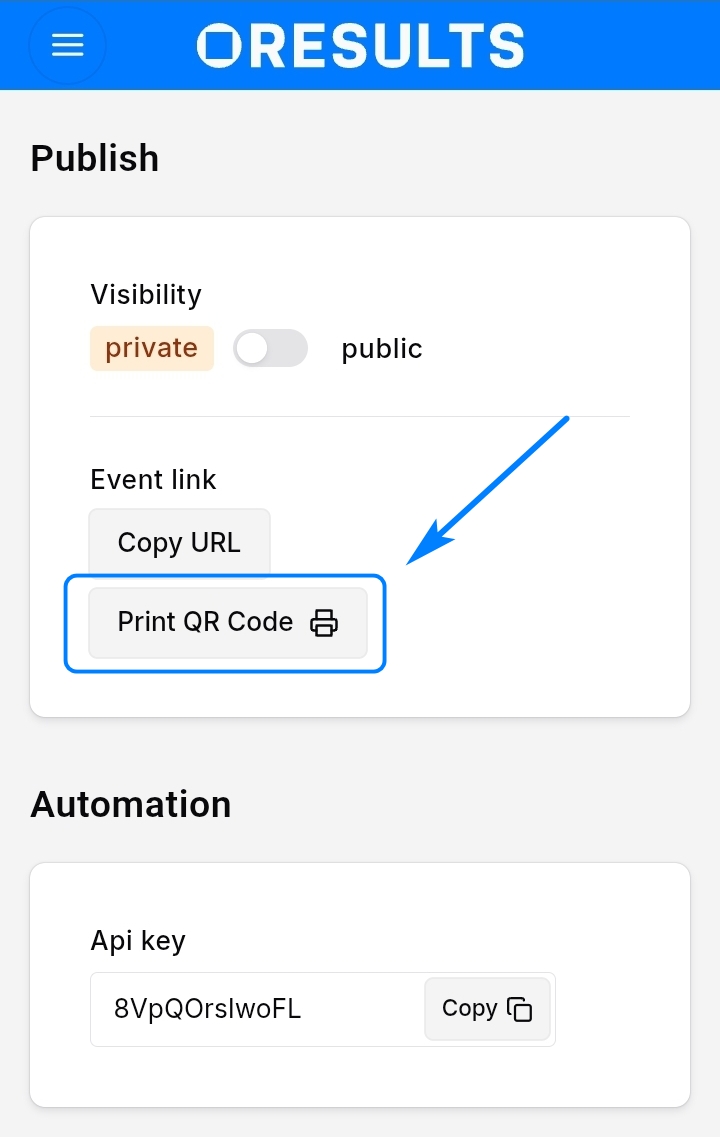
Don't forget to switch Is Published if you want to publish the event.
5. Check out OResults.eu
- scan QR Code and follow how your buddies, rivals, clubmates or family are doing
You can switch between event data and evets settings using the button in the upper left corner (you have to be logged in)
Advanced settings
1. More columns/radiocontrols
Additional columns/data can be added (will be filled in after the read-out) to the screen after importing courses and selecting radiocontrols (fake ones) in Prepare section in the event settings.
This selection:
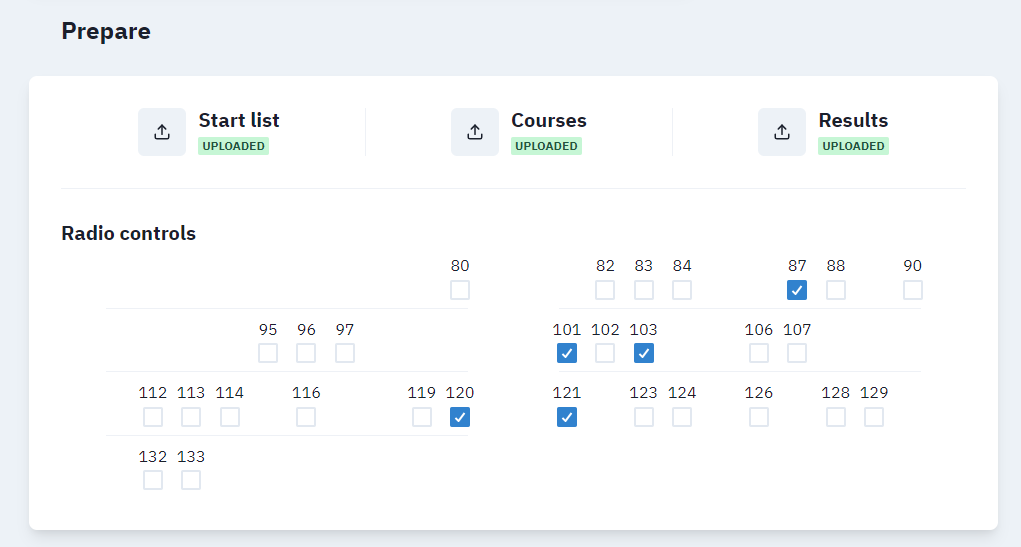
results in (examples of different classes):


instead of basic:

Without imported courses it is not possible to select radio controls.
2. Upload start list
Creating a start list with a mass start in an external program (QuickEvent, MeOS, OE12, ...) and then manually uploading it to OResults will allow you to view all the competitors who should start, so you can see who hasn't read-out yet.
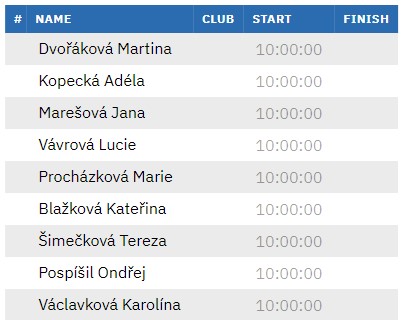
3. Add radiocontrols
Using Mobile App you can even more improve the result service at your event with real radiocontrol.
Support
In case of any issue do not hesitate to contact official OResults support at tech@oresults.eu in Czech or English.